


Toolkit masonry tiles

Example toolkit is ‘Dementia care resources’, below.
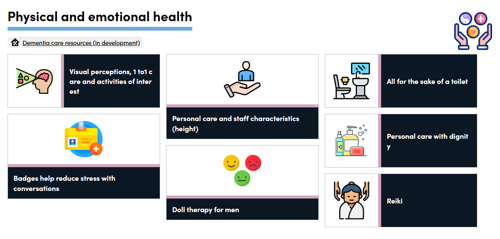
Screenshot of masonry tiles design

To get the masonry tiles follow the steps below:

Step 1. Add listing and content pages to your toolkit, as normal.

Step 2. In the Toolkit listing page, click on Info, top right-hand side of the screen.
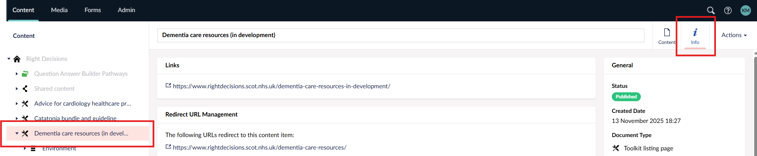
Screenshot of toolkit page and info button

Step 3. In General, right-hand side of the screen, scroll down to Template. Select Toolkit masonry tiles from the dropdown menu.
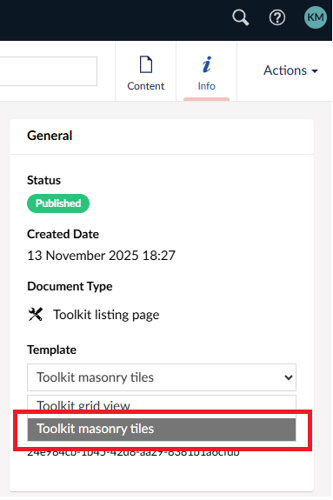
Screenshot of Info page with toolkit masonry tiles option

Step 4. Click Save and publish in the bottom right corner of the screen.
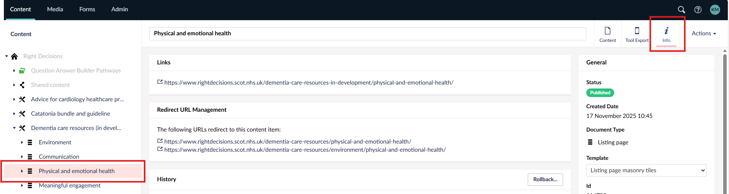
Listing page masonry tiles

Example page is ‘Physical and emotional health’ within the ‘Dementia care resources’, below.

Screenshot of masonry listing page

To get the masonry tiles follow the steps below:

Step 1. Add content pages to your listing page, as normal.

Step 2. In the listing page, click on Info, top right-hand side of the screen.

Screenshot of listing page with info button

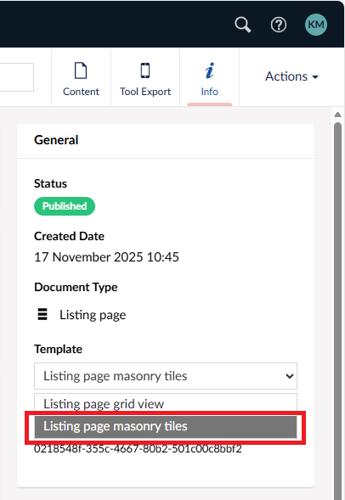
Step 3. In General, right-hand side of the screen, scroll down to Template. Select Toolkit masonry tiles from the dropdown menu.

Screenshot of info page showing listing page masonry tiles

Step 4. Click Save and publish in the bottom right corner of the screen.
Please note that the title of the listings and contents page takes its colour from the ‘Toolkit listing page’ (highest level page).