

Removing tiles from the mobile app

Remove a tile from the mobile app when a page has been deleted from the toolkit

Scenario: the tile of a deleted page still appears if you published a page to the mobile app then deleted the page before removing it from the mobile app.

Example – ‘About this toolkit page’ on the computer the page looks like this:
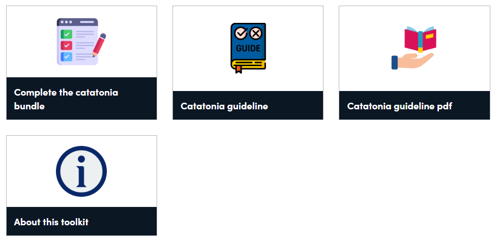
Screenshot of a toolkit with four tiles

On the mobile app there is an additional ‘About this toolkit’ page, see below:
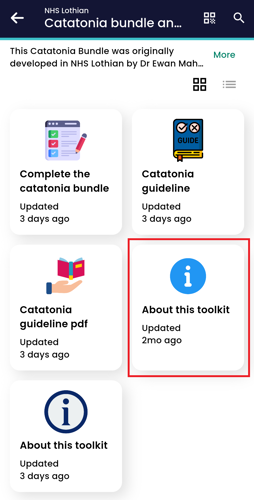
Mobile phone screenshot showing 5 toolkits

Step 1. The old ‘About this toolkit’ needs to be reinstated from the 'Recycle bin'. Contact HIS RDS team to do this for you. Email: his.decisionsupport@nhs.scot.

Below is a screenshot of the old ‘About this toolkit’ having been reinstated.
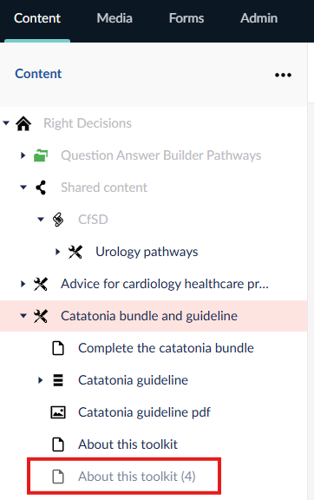
Screenshot showing toolkit reinstated

Step 2. Republish this page by clicking on Save and publish in the bottom right corner of the screen.

The next steps are applicable for this scenario, or if you published a page to the mobile app but no longer want to use that page, and you haven't deleted the page.
Remove a tile from the mobile app

Scenarios: As above or if you published a page to the mobile app but no longer want to use that page, and haven't deleted the page.

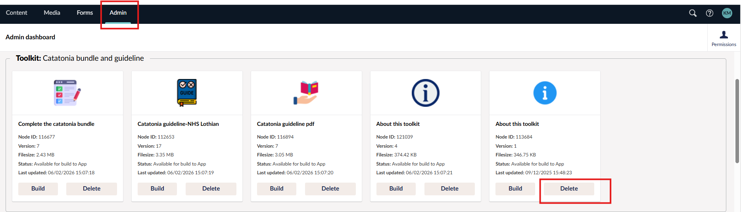
Step 1. In the Admin tab, find the page you want to delete and click on Delete. It may take up to an hour before you can see it is deleted on the mobile app.

Screenshot of Admin tab highlighting delete app

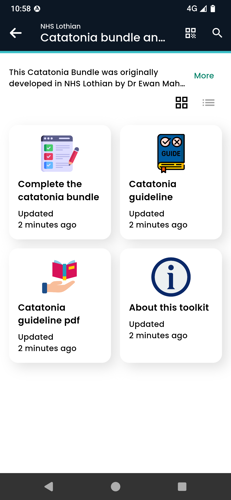
Step 2. Double check on the mobile app that the unwanted page has been deleted. Our example mobile app now has one less ‘About this toolkit’ page, see picture below.

Screenshot of mobile app without extra tile

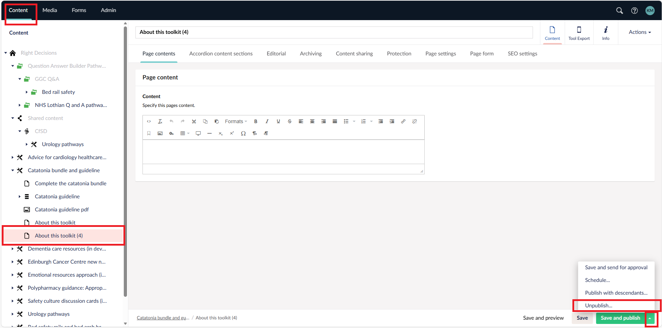
Step 3. You can now unpublish and delete the unwanted page in the ‘Content’ section. Click on the page, go to the up arrow next to ‘Save and publish’, then click on Unpublish.

Screenshot showing steps to unpublish a page

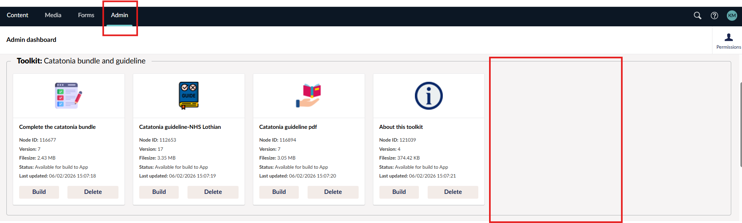
Step 4. Check your page is no longer showing in the Admin tab.

Screenshot showing Admin tab without extra app

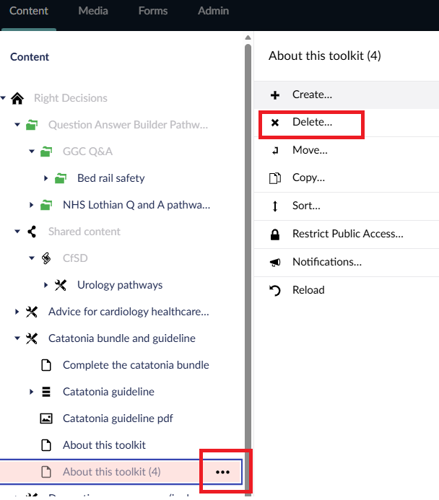
Step 5. Now delete the page. In the 'Content' section, click on the 3 dots next to the page name. Then click on Something else. Then click on Delete.

Screenshot showing how to delete a page