
Creating anchor links
 RDS Learning and support

Anchor links allow you to link to a specific section within a page. They can link within the same page, or to a separate page. To create an anchor link:
- Create or locate the content you want to link to.
- Enter the ID which will act as the target of your anchor link.
- Highlight the content you want to link to then, click on the 'bookmark' icon on the toolbar. This opens a menu to enter your id tag. The tag can be anything you want, but you should choose something that logically relates to tagged content.
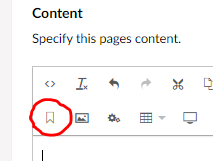
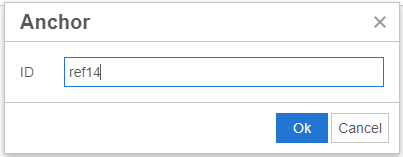
- Enter the tag and click 'Ok'. An element containing this ID will be added to the page.
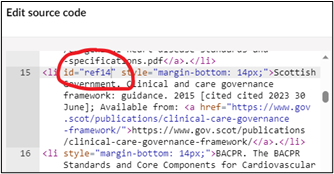
- Alternatively, you can access the source code and enter the id tag directly within the element you want to link to. This uses the format id=”x” - e.g., in context it may look like <p id=”ref14”>Your text</p>.
- Highlight the content you want to link to then, click on the 'bookmark' icon on the toolbar. This opens a menu to enter your id tag. The tag can be anything you want, but you should choose something that logically relates to tagged content.
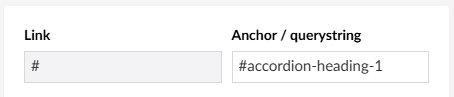
- Add a hyperlink which will link to your anchor. When editing the link, enter your id in the ‘Anchor / querystring’ box.
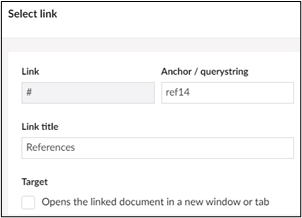
Now when you click on the hyperlink, you will be directed to the target section within the page.
You can also link to accordion headings via a hyperlink. Enter the link for the target page as normal, then enter the accordion section ID into the 'Anchor / querystring' box, using the format '#accordion-heading-x', starting from 0. The first accordion heading on a page is accordion-heading-0, the second accordion-heading-1, et cetera.