Embedding content from external sources - e.g. Google Maps, Google Calendar, MS Stream

RDS now allows for embedding of content from Google Maps, Google Calendar, X/Twitter, Dailymotion, Microsoft Stream. In future we plan to make embedding of Jotforms calculators possible.

You can do this by clicking on 'Insert macro' on the rich text editor panel, then selecting 'HTML embed'. Copy the embed code into the text box that appears, then click submit. Guidance on the code to use is provided below.

Dailymotion

  1. Copy the code in the box below into the HTML embed box.
  2. Before you click submit, replace the text 'MY_VIDEO' with a video id of your choice.
    • The video id can be found at the end of a Dailymotion video URL, e.g. https://www.dailymotion.com/video/x8mmrly

<div style="position:relative;padding-bottom:56.25%;height:0;overflow:hidden;">
  <iframe src="https://geo.dailymotion.com/player.html?video=MY_VIDEO"
   style="width:100%; height:100%; position:absolute; left:0px; top:0px; overflow:hidden; border:none;"
   allowfullscreen
   title="Dailymotion Video Player"
   allow="web-share">
 </iframe>
</div>

Microsoft Stream

From Microsoft stream:

  1. Select a video
  2. Click 'Share' then 'Embed code'
  3. Copy the code displayed in the box.

Only videos from the domain "scottish.sharepoint.com" are accepted. Videos in personal storage will not work because they instead use the URL format "scottish-my.sharepoint.com". In this case, you will have to move the video out of your personal storage for it to display on RDS.

To view a Stream resource, a user must be logged into their organisation's Microsoft 365 account and have access to that particular resource.

Google calendar

From https://calendar.google.com:

  1. Click on the Cog icon, then settings
  2. Select the calendar you want to embed from the menu
  3. Scroll down to or click 'Integrate calendar'
  4. Copy the code from the box labelled 'Embed code'.

Google Maps

From https://www.google.co.uk/maps:

  1. Either:
    • Click menu in the top left, then select 'Share or embed a map'
    • Click on a location, then click share
  2. Go to the 'Embed a map' tab
  3. Click 'COPY HTML'.

Twitter / X

  1. Go to https://publish.twitter.com
  2. Paste the URL to the content you want to embed
  3. Select embedded video or embedded post
  4. Click 'Copy Code'.

Jotforms

In the future, we will able to embed a Jotform form to enable simple addition, subtraction, division and multiplication calculations to be performed on an RDS page. The user can be taken to an appropriate output page based on the result of the calculation.

We are writing a standard operating procedure with quality assurance and governance requirements for publishing these tools on RDS.

Note that simple calculations which contain only a few variables and use basic functions available on a simple calculator (+, -, ×, ÷) generally are not categorised as medical devices - see MHRA guidance.  If you want to use more complex calculations, please contact the RDS team to discuss your requirements.  Information on medical device definition and Medical Device Regulations is available in the RDS standard operating procedure Implementing the  Medical Device Regulations.

Creating a calculation

  1. After logging in to your account, from my workspace, click ‘Create’ and select ‘Form’.
    • Choose 'Start from scratch' and 'Classic form'.
  2. Add a number field, which will allow the user to input a numerical value to the form.
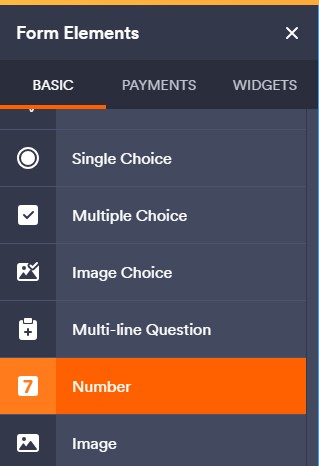
    • Navigate to the Build tab, Form Elements, then ‘BASIC’.
    • Scroll down to the ‘BASIC ELEMENTS’ section, then click ‘Number’ to add a new number field to the form.
    • Number fields will allow the user to input a numerical value to the form.

      Jotform user interface with the number form element selected

  3. Add a calculation question, which will output the answer of a mathematical operation.
    • Navigate to the Build tab, Form Elements, then 'WIDGETS’.
    • Click ‘Form Calculation’ to add a calculation question and open the Form Calculation Widget panel on the right of the screen.
    • You can open Form Calculation Widget panel again later by clicking on the calculation question then clicking ‘Widget Settings’.
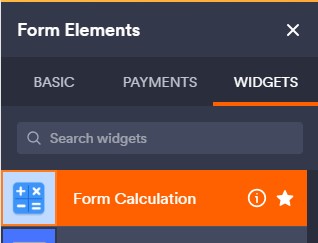
      Jotform user interface with the calculation widget selected

  4. Enter an equation into the Form Calculation Widget panel.
    • Clicking ‘ADD FIELD’ allows you to choose a number input question. The value typed in the box will be added to the equation.
    • Combine number fields with constants or numerical operators to create an equation.

Example calculations

You can combine the two number fields with a numerical operator to create a formula, e.g. [Number1]+[Number2], [Number1]*[Number2].
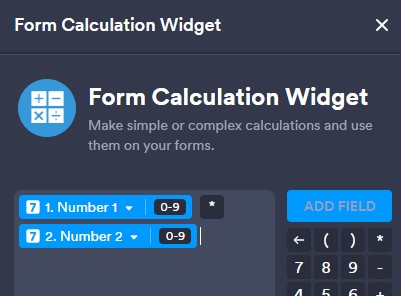

An example Jotform calculation which multiplies two numbers together