
 RDS Learning and support

When clicking within a content or guideline page, there is now a tab called ‘Content sharing’ which will allow you to import content from the shared content library (which can then be edited).

When clicking within a content or guideline page, there is now a tab called ‘Content sharing’ which will allow you to import content from the shared content library (which can then be edited).

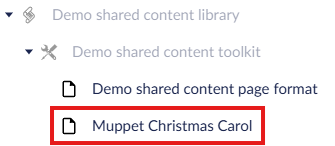
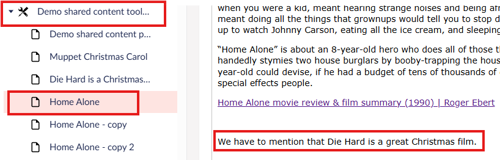
Within the content sharing tab, you would click on ‘Add’ under ‘Import content from’. This will load up the shared content library in a column on the right-hand side of the screen. You would then select the page you would like to include within your toolkit. You will have the option to edit this page. Note that you would import from the shared library to the same type of page (e.g. content page to content page, guideline page to guideline page). The example here shows a demo shared content page being imported to a content page.
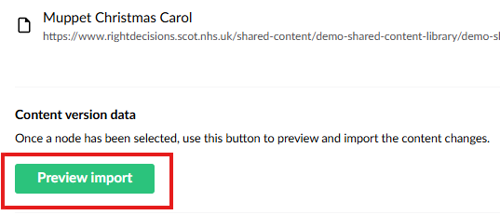
When you have chosen the page you want to import content from, select ‘Preview import’.
'My version'
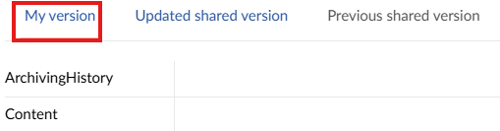
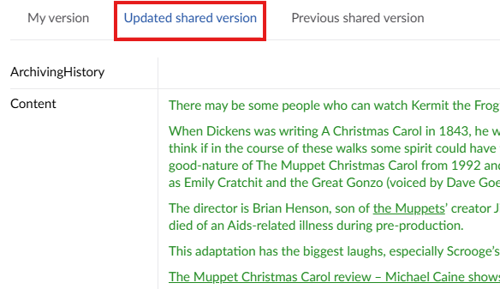
The ‘My version’ tab shows what currently appears within your page. In the screenshot above, the content page was blank so nothing appears within the ‘Content’ section.
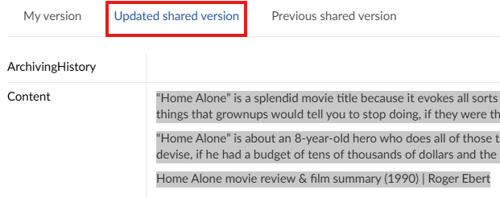
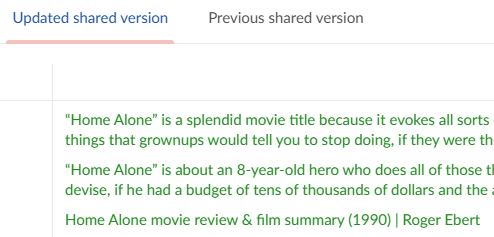
The ‘Updated shared version’ tab shows the content you will be importing from the shared content page. The content which is different to what currently appears in your own content page appears as green text.
'Previous shared version'The previous shared version tab should allow you to restore the penultimate version of the shared content page.
However, this functionality is not currently reliable and it is not recommended for use by editors at this time.
Warning notice
'Please note that by accepting content updates from the linked node, you will be overwriting all of your current content, including any custom alterations you have made. If you wish to only use some of the content changes, please do this manually.'
This warning notice appears within the ‘Preview Import’ screen. The over-riding message is to be wary when importing content. You are at risk of overwriting content when you import.
Green text
'Appears in 'Updated shared version and 'Previous shared version'. The green font highlights changes made by the shared content editor in the most recent edit and previous one. These will be saved if you accept all changes but your own edits will be overwritten. To avoid this, you can manually enter into your content page the changes in green that you want to carry over to your version of the content.'
This explanation of green text appears within the ‘Preview Import’ screen. Green text is different to what currently appears on your content page (see Updated shared version).
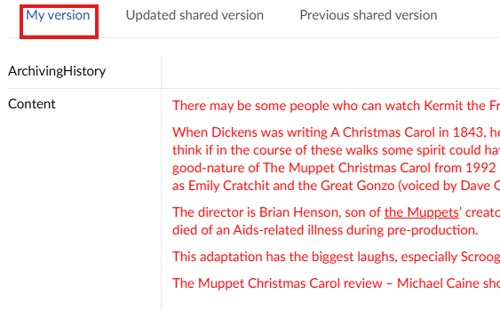
Red text
'Appears in 'My version'. The red font highlights changes you have made to the content. These changes will be lost if you accept the new ''Updated shared version.'' To avoid losing them, you can manually enter the changes you want to accept from the shared version into your own edited version.'
This explanation of red text appears within the ‘Preview Import’ screen. Be aware that text in red will be overwritten if you import content. See section for advice on copying a page before importing and section for guidance on using manual copy/paste rather than ‘Import Content’.
Black text
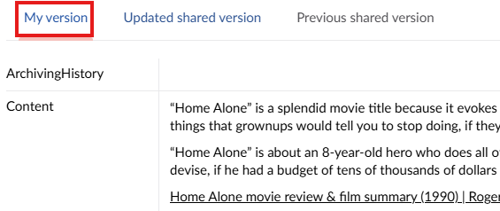
When preview import text appears in black, it means the following:
Important note and ‘copy’ page
'Clicking on 'Import' or 'Accept all' overwrites any local edits you made to the previous content. 'Restore previous shared version' only restores the last version you imported, not your local edits. We recommend that you take a copy of your local edited content in 'My version' before clicking on 'Import' or 'Accept all' so that you can revert to it if required.'
This important note appears as a message within the ‘Preview Import’ screen. As suggested, it may be useful to ‘copy’ a page as back-up before importing content in order to ensure that your content is not lost/ overwritten:
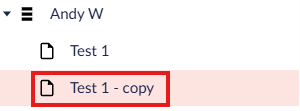
A way of ensuring that you do not overwrite content on your content page is to copy the green text and paste this into your content page (rather than clicking on the green ‘Import Content’ tab). An alternative strategy would be to ‘copy’ your content page within Umbraco as per 'Important note and copy page'' section above.
If you are happy that you are not going to overwrite any content, then you can click on the ‘Import Content’ tab.
Avoid mistakes going liveIf you click on the ‘Save and preview’ tab after clicking ‘Import Content’, you can ensure that you have not imported content in error/ copied over content. If you have made a mistake, as long as you don’t click on ‘Save and publish’ then this will not go live.
When you have imported the shared content, you can continue to edit your shared content page (which was not possible with Basic shared content picker (non-editable)). Again, be aware that your own editing is at risk of being overwritten when importing shared content.
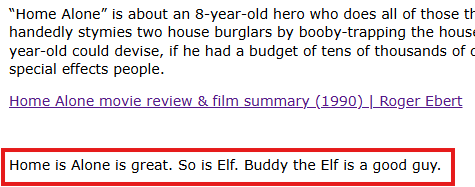
The shared content page can be updated by editors with access at any time. This will therefore mean that a different version could exist to the version that you previously imported into your content page.
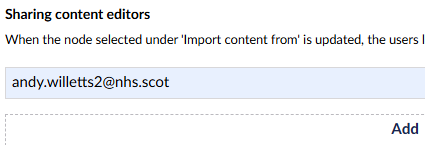
Sharing content editorsAs per screenshot below, when you are on the ‘Content sharing’ tab for your content page, you can ensure that you are kept informed of any changes to the shared content page you used for importing content. You simply add your e-mail address to the ‘Sharing content editors’ field and you will be alerted by e-mail to any changes to the shared content page associated with your content page.
Content share and edit can be a difficult concept to fully understand. The following steps are recommended:
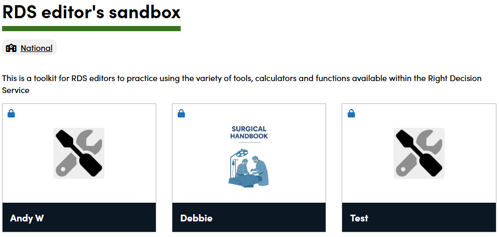
This is what the RDS editor sandbox homepage looked like before a page was added using content share and edit functionality:
This is what the RDS editor sandbox homepage looked like after the page was added using the content share and edit functionality (note the icon needs to be manually added by the user):
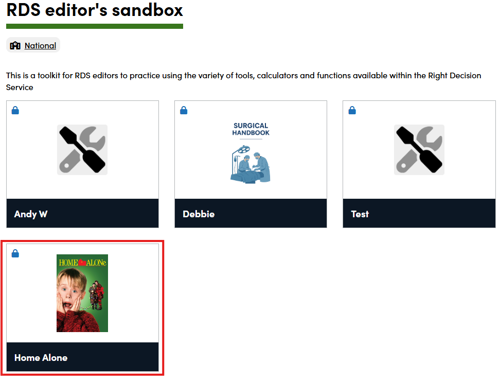
The key difference with this functionality compared with the basic shared content picker is that the content within the new page can be edited: