

This guide will take you through the process of what happens when you search for a term within the search box.

Search example

The example search term here is ‘palliative’.   

In this example, when you search for ‘palliative’ whilst the ‘All content’ toggle is selected, this produces 396 results. ‘All content’ includes every webpage, guideline, pathway, calculator and risk assessment tool within every toolkit on the RDS site.

Screenshot showing number of search results which appear when searching for the term 'palliative' in 'All content' on the Right Decision Service website

Resource icons

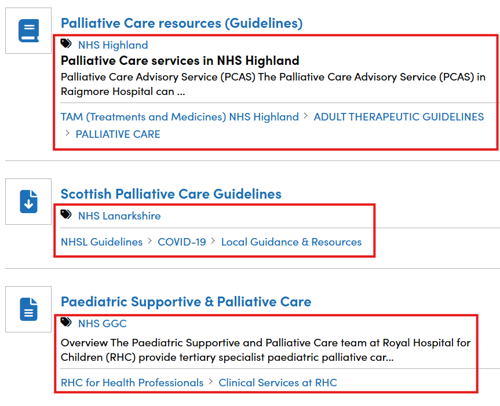
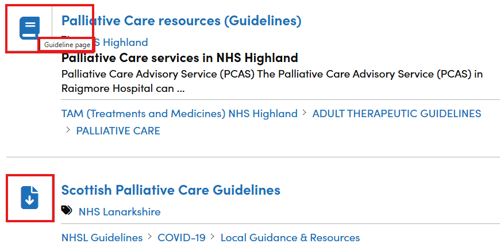
When we look at these results, we see that each resource has an icon next to it. If you hover over the icon with the cursor, it will tell you the type of page for each resource. In this example, the book icon indicates a guideline page and the download icon indicates a media page. 

Screenshot showing resource icons next to search results on Right Decision Service website

Resource details

For each resource that appears after searching for a term, there is a range of useful information. The title of the page appears with the organisation tagged below this. A snippet of text may then appear (around a line and a half) helping to indicate the information to be found within the page. Finally, there is a ‘breadcrumb’ showing the position of the page within the hierarchy of the toolkit it belongs to. 

Screenshot showing resource details for search results on Right Decision Service website

Search for toolkit title

There is the option to search by ‘Toolkit titles’ rather than all content when you choose this toggle which appears next to the search box. After switching toggles, you should click on the green search tab to produce the relevant search results. 

The number of results retrieved reduces to 4 compared with 396 for ‘All content’ as only toolkit titles are being searched.

Screenshot showing the number of search results for the term 'palliative' when searching by toolkit title on the Right Decision Service website

Three tabs in search results

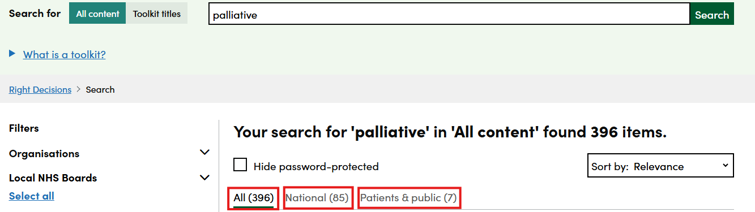
When searching again for ‘palliative’ when the ‘All content’ tab is toggled on, we can see that as well as showing the total amount of resources, the number of these resources which are ‘National’ and for ‘Patients & public’ is also highlighted. 

In the example below, we can see that 85 of the 396 results are national resources, and that 7 are for patients & public. When clicking on each tab, we will see that the results filter accordingly.

Screenshot showing three tabs of search results which appear on the Right Decision Service website

Hide password protected

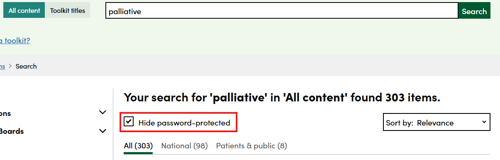
There is an option to select the ‘Hide password-protected' box to ensure that only freely accessible resources appear within the search results. 

Screenshot showing how to hide password-protected resources from search results on Right Decision Service website


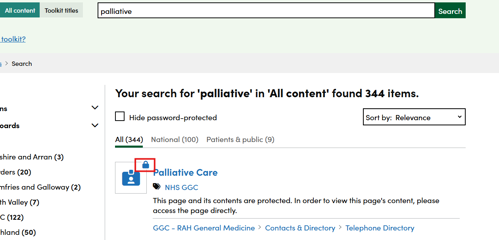
Passcode protected pages that appear within search results are denoted by a padlock icon. 

Screenshot showing a password-protected resource on the list of Right Decision Service results (denoted by a padlock icon)

Sort by

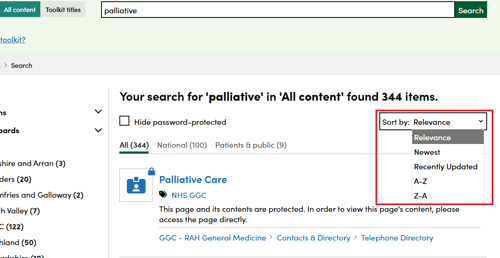
There are different ways to sort the order of the search results. The default option is for the search results to be sorted by ‘Relevance’. Other options are to sort by ‘Newest’ (most recently created Right Decision Service or ‘RDS’ pages), ‘Recently updated’ (including existing pages that have been recently edited), A-Z and Z-A. 

Screenshot showing the different ways in which you can sort the search results on the Right Decision Service website